
Best Windows 11 Tips & Tricks to Boost Productivity (2026 Guide)

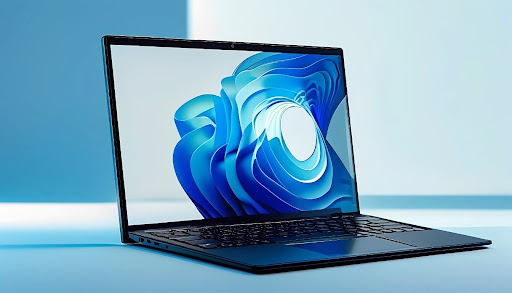
In a world where time is limited and expectations are high, productivity is no longer optional. Whether you are a student managing assignments, a freelancer handling clients, or a professional working remotely, Windows 11 offers powerful features that can transform the way you work.
Instead of installing multiple tools, you can use built-in Windows 11 features to streamline tasks, reduce distractions, and improve efficiency. This detailed guide explains the best Windows 11 tips and tricks to boost productivity in 2026, along with practical ways to apply them.
Why Productivity Optimization in Windows 11 Matters
Before diving into the tips, it is important to understand why optimizing your system matters.
A well-optimized Windows setup helps you:
- Save time on repetitive tasks
- Reduce system lag and distractions
- Improve multitasking efficiency
- Stay focused for longer periods
As a result, you complete more work in less time without feeling overwhelmed.
Use Snap Layouts to Improve Multitasking
To begin with, Snap Layouts are one of the most powerful productivity features in Windows 11. They allow you to split your screen into multiple sections and run apps side by side.
For example, you can:
- Write content while researching in a browser
- Attend meetings while taking notes
- Compare documents without switching tabs
Simply hover over the maximize button on any window to see layout options.
Consequently, this reduces unnecessary app switching and keeps your workflow smooth.
Organize Work with Virtual Desktops
In addition to Snap Layouts, Virtual Desktops help you separate different types of work.
You can create multiple desktops such as:
- Work desktop for professional tasks
- Study desktop for learning
- Personal desktop for entertainment
This separation keeps your workspace clean and minimizes distractions.
Moreover, switching between desktops is quick and seamless, which improves overall focus.
Stay Focused with Focus Sessions
Distractions are one of the biggest productivity killers. Therefore, Windows 11 includes Focus Sessions to help you stay on track.
With this feature, you can:
- Set a timer for deep work sessions
- Block notifications temporarily
- Track your progress
As a result, you develop better concentration habits and avoid constant interruptions.
Master Keyboard Shortcuts for Speed
Another highly effective way to boost productivity is by using keyboard shortcuts.
Some essential shortcuts include:
- Windows + D to show desktop
- Windows + V to open clipboard history
- Windows + Shift + S for screenshots
- Alt + Tab to switch apps
Although they may seem small, these shortcuts save a significant amount of time daily.
Over time, they become second nature and drastically improve workflow speed.
Use Clipboard History for Faster Copy-Paste
Instead of copying and pasting one item at a time, Windows 11 allows you to store multiple copied items using Clipboard History.
Once enabled, you can:
- Access previously copied text and links
- Paste frequently used content quickly
- Sync clipboard across devices
To enable it, go to Settings, then System, and turn on Clipboard History.
This feature is especially useful for content creators, marketers, and students.
Leverage Copilot for Smarter Workflows
One of the most important additions in recent updates is Windows Copilot, which brings AI-powered assistance directly into your system.
With Copilot, you can:
- Summarize documents
- Generate content ideas
- Adjust system settings using commands
For example, instead of manually searching settings, you can simply ask and get results instantly.
As a result, tasks that previously took minutes can now be completed in seconds.
Use File Explorer Tabs for Better File Management
Managing files efficiently is crucial for productivity. Windows 11 improves this with File Explorer tabs.
You can:
- Open multiple folders in one window
- Switch between tabs easily
- Reduce clutter on your screen
This makes file navigation faster and more organized.
Customize Notifications to Reduce Distractions
While notifications are helpful, too many can interrupt your workflow.
Therefore, you should:
- Disable unnecessary app notifications
- Use Do Not Disturb mode during work
- Allow only priority alerts
By doing this, you create a distraction-free environment that supports deep work.
Optimize Performance Using Task Manager
A slow system can reduce productivity significantly. To avoid this, use Task Manager regularly.
With Task Manager, you can:
- Disable startup apps that slow boot time
- Monitor CPU and memory usage
- Close unnecessary background applications
Consequently, your system runs smoother and responds faster.
Sync Your Work Across Devices
Finally, syncing your data across devices ensures continuity in your workflow.
By using your Microsoft account, you can:
- Access files from different devices
- Sync settings and preferences
- Backup important data automatically
This is particularly useful for remote work and multi-device usage.
Additional Productivity Tips for Windows 11 Users
To take your productivity even further, consider these extra tips:
- Keep your desktop clean and organized
- Use dark mode to reduce eye strain
- Regularly update your system for better performance
- Install only necessary applications
Small changes like these can have a big impact over time.
Final Thoughts
Improving productivity in Windows 11 is not about working harder. Instead, it is about using the right features effectively.
From Snap Layouts and Virtual Desktops to Copilot and Focus Sessions, every tool is designed to simplify your workflow. When used correctly, these features help you stay organized, focused, and efficient.
Start applying these tips step by step. Gradually, you will notice better performance, faster task completion, and a more structured work routine.
Frequently Asked Questions (FAQs)
1. How can I make Windows 11 faster for better productivity?
To make Windows 11 faster, disable unnecessary startup apps, keep your system updated, and close background processes using Task Manager. In addition, using lightweight apps and freeing up storage space can significantly improve performance.
- What are the best Windows 11 features for multitasking?
The most useful multitasking features include Snap Layouts, Virtual Desktops, and Task View. These tools help you organize multiple apps efficiently and switch between tasks without losing focus.
- How do I reduce distractions while working on Windows 11?
You can enable Focus Sessions, turn on Do Not Disturb mode, and customize notifications. As a result, you will experience fewer interruptions and better concentration during work hours.
- Is Windows Copilot useful for productivity?
Yes, Windows Copilot is highly useful for productivity. It helps automate tasks such as summarizing content, adjusting settings, and generating ideas. Therefore, it saves time and improves efficiency in daily workflows.
- What are the best settings to optimize Windows 11 for work?
For better productivity, enable Clipboard History, use dark mode for reduced eye strain, disable unnecessary notifications, and organize your workspace with Snap Layouts. These settings create a smoother and more focused working environment.